> ## Documentation Index
> Fetch the complete documentation index at: https://phidatainc-agui.mintlify.site/llms.txt
> Use this file to discover all available pages before exploring further.
# AgentUI
> An Open Source AgentUI for your AgentOS
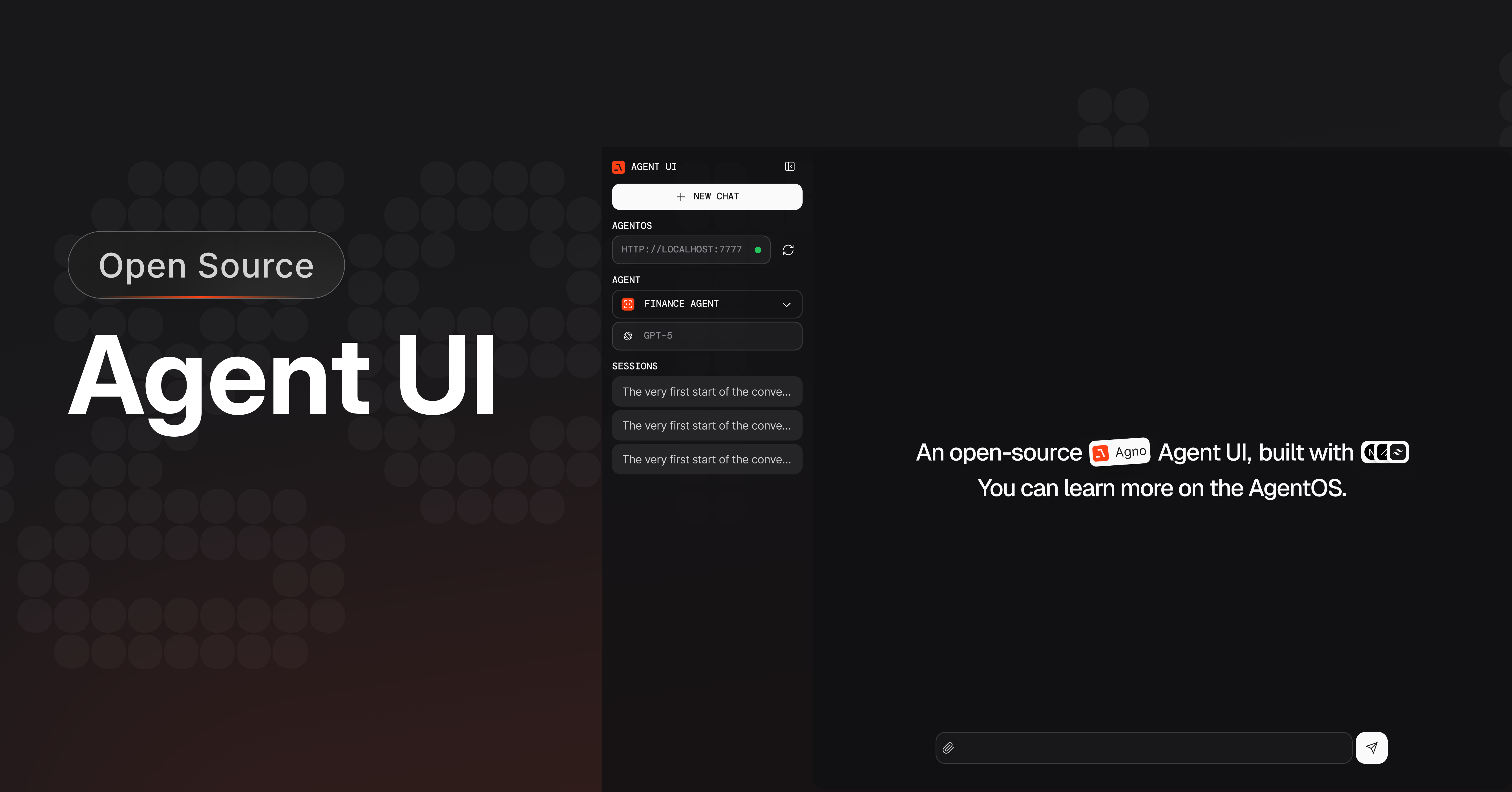 Agno provides a beautiful UI for interacting with your agents, completely open source, free to use and build on top of. It's a simple interface that allows you to chat with your agents, view their memory, knowledge, and more.
The AgentOS only uses data in your database. No data is sent to Agno.
Built with Next.js and TypeScript, the Open Source Agent UI was developed in response to community requests for a self-hosted alternative following the success of [AgentOS](https://github.com/agent-os/introduction).
## Get Started with Agent UI
To clone the Agent UI, run the following command in your terminal:
```bash theme={null}
npx create-agent-ui@latest
```
Enter `y` to create a new project, install dependencies, then run the agent-ui using:
```bash theme={null}
cd agent-ui && npm run dev
```
Open [http://localhost:3000](http://localhost:3000) to view the Agent UI, but remember to connect to your local agents.
Agno provides a beautiful UI for interacting with your agents, completely open source, free to use and build on top of. It's a simple interface that allows you to chat with your agents, view their memory, knowledge, and more.
The AgentOS only uses data in your database. No data is sent to Agno.
Built with Next.js and TypeScript, the Open Source Agent UI was developed in response to community requests for a self-hosted alternative following the success of [AgentOS](https://github.com/agent-os/introduction).
## Get Started with Agent UI
To clone the Agent UI, run the following command in your terminal:
```bash theme={null}
npx create-agent-ui@latest
```
Enter `y` to create a new project, install dependencies, then run the agent-ui using:
```bash theme={null}
cd agent-ui && npm run dev
```
Open [http://localhost:3000](http://localhost:3000) to view the Agent UI, but remember to connect to your local agents.
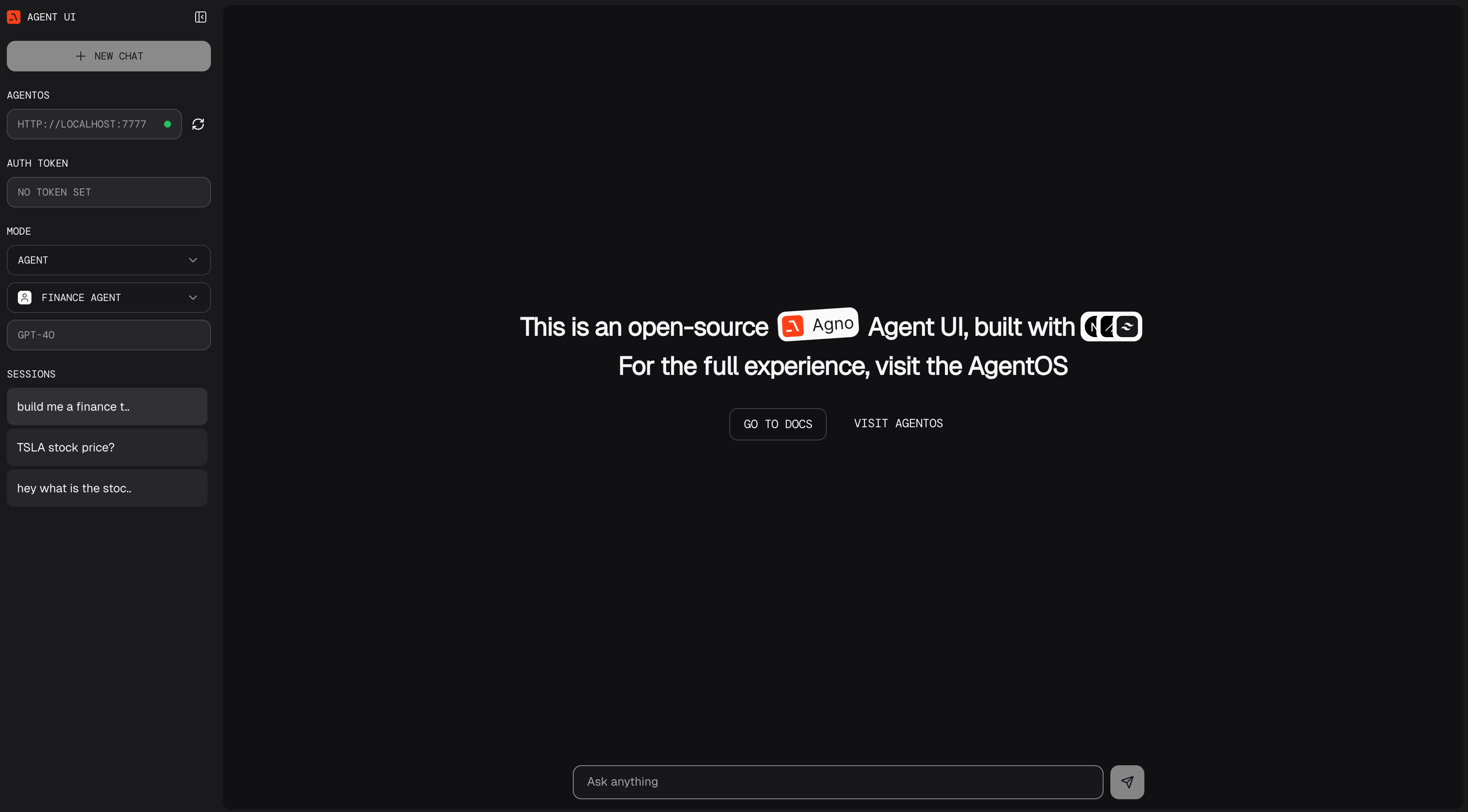
You can also clone the repository manually
```bash theme={null}
git clone https://github.com/agno-agi/agent-ui.git
```
And run the agent-ui using
```bash theme={null}
cd agent-ui && pnpm install && pnpm dev
```
## Connect your AgentOS
The Agent UI needs to connect to a AgentOS server, which you can run locally or on any cloud provider.
Let's start with a local AgentOS server. Create a file `agentos.py`
```python agentos.py theme={null}
from agno.agent.agent import Agent
from agno.models.openai import OpenAIChat
from agno.os import AgentOS
from agno.db.sqlite import SqliteDb
from agno.tools.duckduckgo import DuckDuckGoTools
from agno.tools.yfinance import YFinanceTools
agent_storage: str = "tmp/agents.db"
web_agent = Agent(
name="Web Agent",
model=OpenAIChat(id="gpt-4o"),
tools=[DuckDuckGoTools()],
instructions=["Always include sources"],
# Store the agent sessions in a sqlite database
db=SqliteDb(db_file=agent_storage),
# Adds the current date and time to the context
add_datetime_to_context=True,
# Adds the history of the conversation to the messages
add_history_to_context=True,
# Number of history responses to add to the messages
num_history_runs=5,
# Adds markdown formatting to the messages
markdown=True,
)
finance_agent = Agent(
name="Finance Agent",
model=OpenAIChat(id="gpt-4o"),
tools=[YFinanceTools()],
instructions=["Always use tables to display data"],
db=SqliteDb(db_file=agent_storage),
add_datetime_to_context=True,
add_history_to_context=True,
num_history_runs=5,
markdown=True,
)
agent_os = AgentOS(agents=[web_agent, finance_agent])
app = agent_os.get_app()
if __name__ == "__main__":
agent_os.serve("agentos:app", reload=True)
```
In another terminal, run the AgentOS server:
```bash Mac theme={null}
python3 -m venv .venv
source .venv/bin/activate
```
```bash Windows theme={null}
python3 -m venv aienv
aienv/scripts/activate
```
```bash Mac theme={null}
uv pip install -U openai ddgs yfinance sqlalchemy 'fastapi[standard]' agno
```
```bash Windows theme={null}
uv pip install -U openai ddgs yfinance sqlalchemy 'fastapi[standard]' agno
```
```bash Mac theme={null}
export OPENAI_API_KEY=sk-***
```
```bash Windows theme={null}
setx OPENAI_API_KEY sk-***
```
```shell theme={null}
python agentos.py
```
Make sure the module path in `agent_os.serve()` matches your filename (e.g., `"agentos:app"` for `agentos.py`).
## View the AgentUI
* Open [http://localhost:3000](http://localhost:3000) to view the Agent UI
* Enter the `localhost:7777` endpoint on the left sidebar and start chatting with your agents and teams!
## Learn more
Learn about AgentOS
Build your own agents